Start with a quiet, reversible check
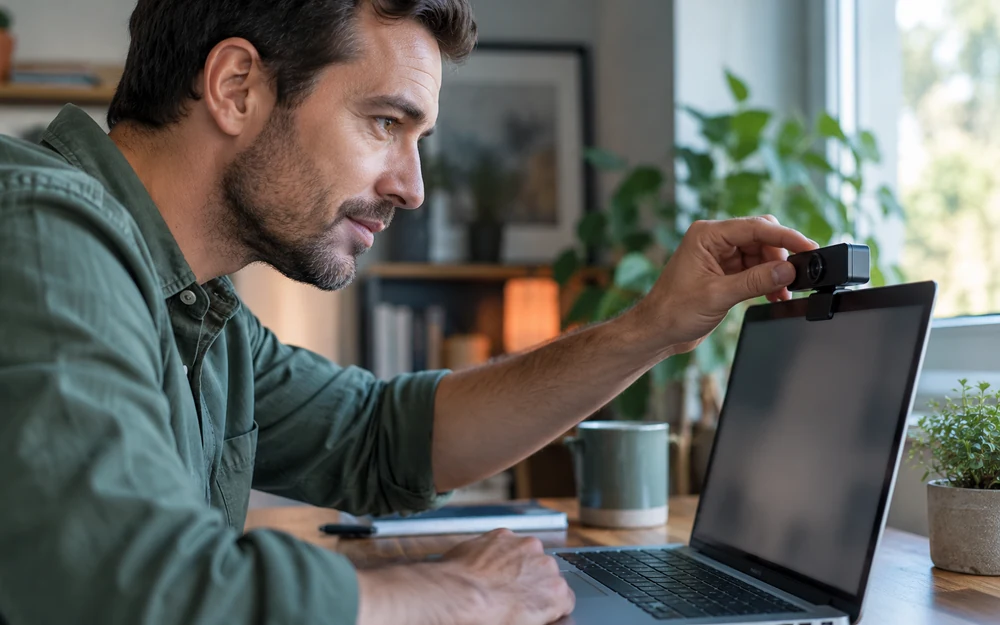
If a video-chat camera is not working, first close the session and check the obvious things: the lens cover, a loose USB cable, a disconnected webcam or the wrong camera selected. Disconnecting and reconnecting an external device can help you identify which camera the computer sees.
Try the camera in a trusted built-in camera application. A working local preview suggests the hardware can function; it does not prove that a particular browser has permission. Avoid repeatedly changing unrelated settings, because that makes it harder to learn which step mattered.
Check Chrome’s site permission
Google’s Chrome Help explains camera and microphone permissions under Settings → Privacy and security → Site settings. Open Camera or Microphone, review the site decision and choose the intended device where a selection is offered. A blocked request and an unavailable device are different problems.
Use a permission appropriate to the visit rather than granting broad access automatically. The exact prompt can vary by version and platform. After changing the decision, reload the affected page. Use Chrome’s linked official instructions if your menu labels differ.
| Symptom | Check first | Then consider |
|---|---|---|
| Black picture everywhere | Lens cover, cable and local camera app. | Device or operating-system support. |
| Works locally, not in browser | Site decision and system access for that browser. | Selected camera and a fresh page load. |
| Video works, audio does not | Microphone permission and mute controls. | Correct input device. |
| Setting cannot be changed | Managed-device restrictions. | Official help or your administrator. |
Check Firefox’s permission decision
Mozilla documents camera and microphone controls in Settings → Privacy & Security → Permissions. Review the relevant Camera or Microphone entry and the site’s current decision. Its address-bar permission controls also let you clear a decision so the site can ask again.
Allow only a request you intended to trigger. If an unexpected page asks for both devices, pause before accepting. Browser permission is a capability, not an assurance about the page’s content, a conversation partner or how a service handles data.
Check the operating system and device selection
A browser can have an allowed site decision while the operating system denies camera access to the browser itself. Google and Mozilla both identify the system layer as relevant. Check the current camera and microphone privacy settings for your own operating system.
Also check whether a different application is using the device, whether the correct input is selected and whether a headset has a physical mute switch. On a work or school device, an administrator may restrict changes. Ask the administrator rather than trying to bypass that restriction.
Separate a local problem from a service problem
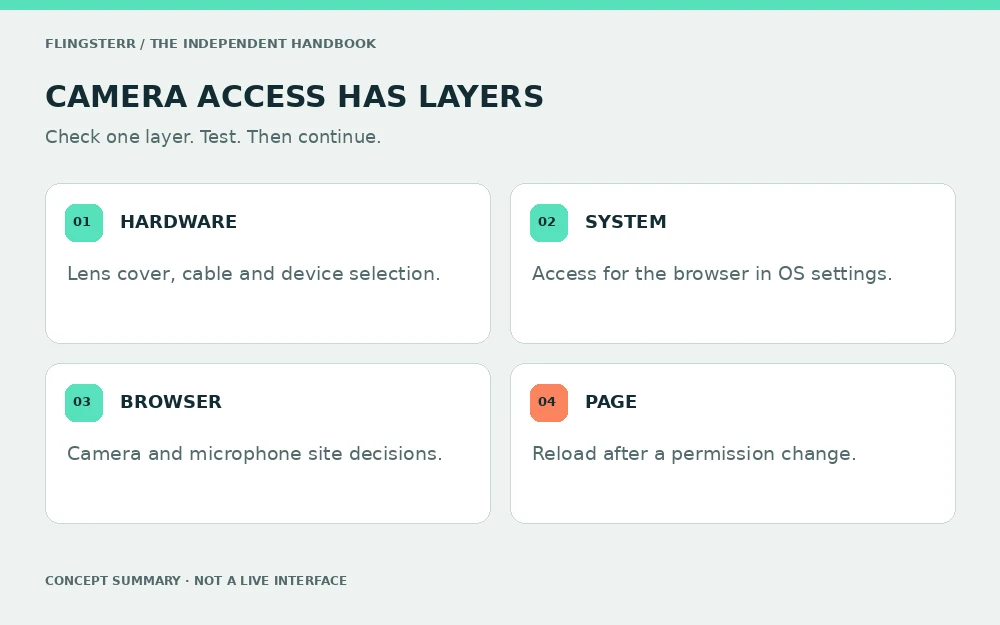
Test in a simple sequence: local camera preview, browser permission, then a fresh page load. A working camera in one browser and a failure in another suggests that their settings or support may differ. It does not establish a universal solution.
Keep your browser current and use the service’s official help for persistent failures. Do not install a codec, extension or remote-access tool sent by a stranger as a condition of fixing a chat. Avoid posting a screenshot that reveals account identifiers, other people or your room.
Review access when you finish
Once testing is over, close the session and revisit the site’s camera and microphone decisions if you do not want future access. A physical lens cover blocks the camera’s view; it does not mute the microphone or change browser permission.
You do not need to enable video to complete this checklist. Our website never requests either device. For the bigger picture beyond permissions, read random video chat privacy.
Hardware, operating-system access and site permission are separate checks. Change one thing, then test again.
Questions & answers
Why is the camera preview black?
Possible causes include a closed lens cover, unavailable device, browser decision or operating-system restriction. A black preview alone does not identify which one.
Can this website test my webcam?
No. This publication does not request camera or microphone access or run a webcam test.
Where are Chrome camera permissions?
Google documents them under Settings, Privacy and security, Site settings, then Camera or Microphone. Menu names can change.
Where are Firefox camera permissions?
Mozilla documents Camera and Microphone controls under Settings, Privacy & Security, Permissions, along with address-bar controls.
Does covering the webcam mute the microphone?
No. A physical camera cover does not mute audio or change the browser’s permission decision.
Should I bypass a work-device restriction?
No. Ask the device administrator about a setting you cannot change.
Primary sources
- Google Chrome Help — Use your camera and microphone
- Mozilla Support — Manage camera and microphone permissions
- Flingster — Frequently Asked Questions
Official pages reviewed 20 October 2026. Browser labels, service features and policies may change. Read the current source for details. This independent educational guide cannot verify another service’s internal systems or an individual user’s behaviour.